

Obtaining API credentials
API access in iBinder is granted through API clients, which use the OAuth 2.0 client credentials flow. Each client belongs to a single organization and authenticates with a client_id and client_secret. A client can have access to the entire organization, or only to a limited part of it through Areas. This page walks through how an organization owner creates and manages those credentials.
For details on exchanging the credentials for a token, see Authentication.
By the end of this page you will have the three values every API call needs:
- an organization id (sent on every request as
x-ibinder-tenantid), - a client id, and
- a client secret.
Before you start
API clients are not enabled by default. To get started:
- Contact iBinder support and ask them to enable API clients for your organization.
- Once enabled, organization owners will see a new API clients page in the organization's left-hand menu.
Only organization owners can create or manage API clients.
How API clients work
- Client credentials. Each client authenticates with a
client_idandclient_secretagainstsignin.ibinder.com. - Scoped to one organization. A client only has access to the organization it was created in — it cannot reach data in other organizations on the same tenant.
- Organization-wide or area-scoped. A client either has access to the whole organization, or only to the parts of it you grant through Areas.
- Role-based access. The client's role decides which of the two it gets.
Clients with access to the entire organization
These clients have access to all binders, properties and other resources in the organization. Pick one of these roles:
- Reader — read-only access.
- Creator — read and write.
- Administrator — full management access.
Clients with access to selected areas
A client with the Restricted reader role has no access to the organization on its own. It gets the same kind of access as a user with the Restricted reader role: it can only reach the binders and properties in the areas you add it to. For each area you choose the role the client has there:
- Reader — read-only access to the area.
- Creator — read and write in the area.
- Administrator — full management access in the area.
Use this when an integration only needs part of the organization, for example a single region or a group of properties. Areas must be enabled for the organization for the Restricted reader role to be available.
Whichever kind of client you create, choose the lowest role, and the fewest areas, that satisfy the integration's needs.
Find your organization id
Every API request must carry an x-ibinder-tenantid header. The value to send is your Organization id — a GUID that iBinder shows in the organization overview.
To find it:
- Open your organization in iBinder.
- On the Overview page, click the info button (ⓘ) in the top-right corner, next to the star.
- Copy the value under Organization id with the copy button next to it.
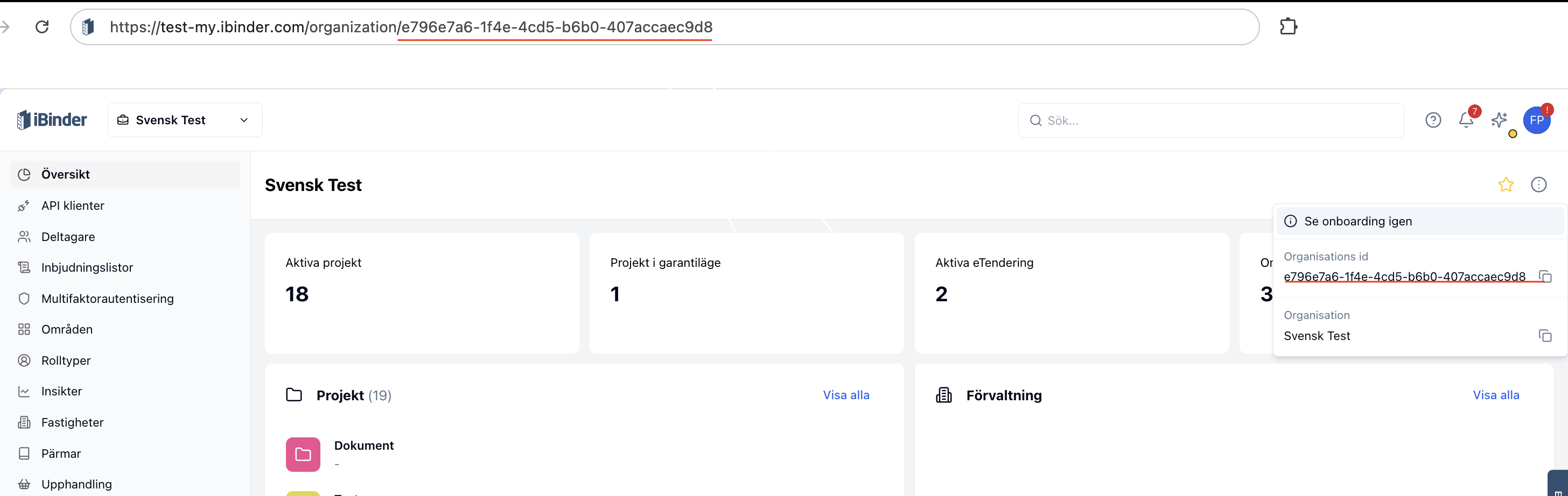
The same GUID appears in the URL after /organization/ when you're on the overview page, so you can also copy it from the address bar.
Terminology
In the API this value is called the tenant id (because of the x-ibinder-tenantid header), but in the UI it is labelled Organization id. They are the same value.
Create an API client
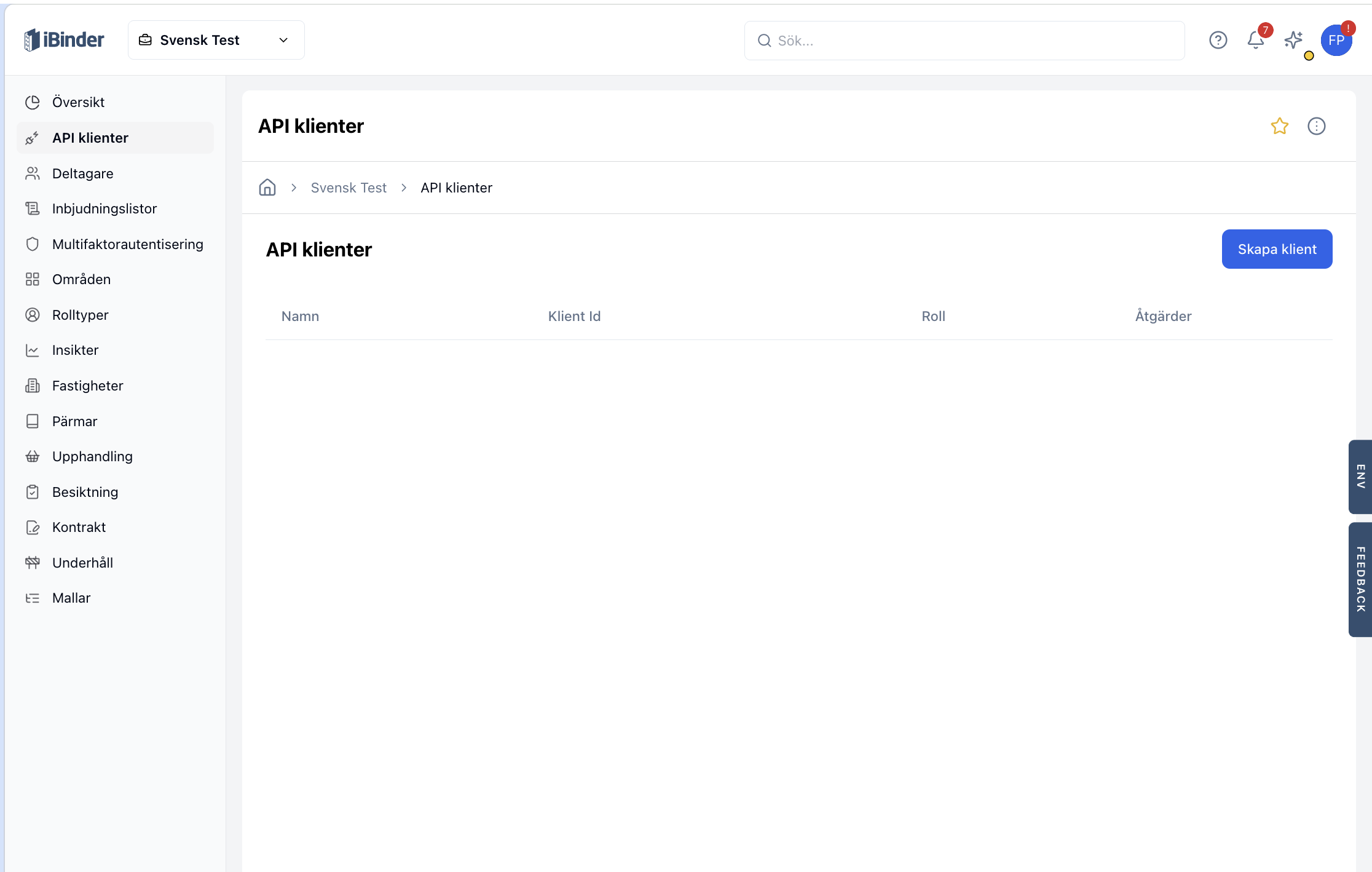
1. Open the API clients page
In your organization, select API clients from the left-hand menu. The page lists existing clients and lets you create new ones. The first time you visit, the list is empty.
2. Open the create dialog
Click Create client in the top-right corner to open the create-client dialog.
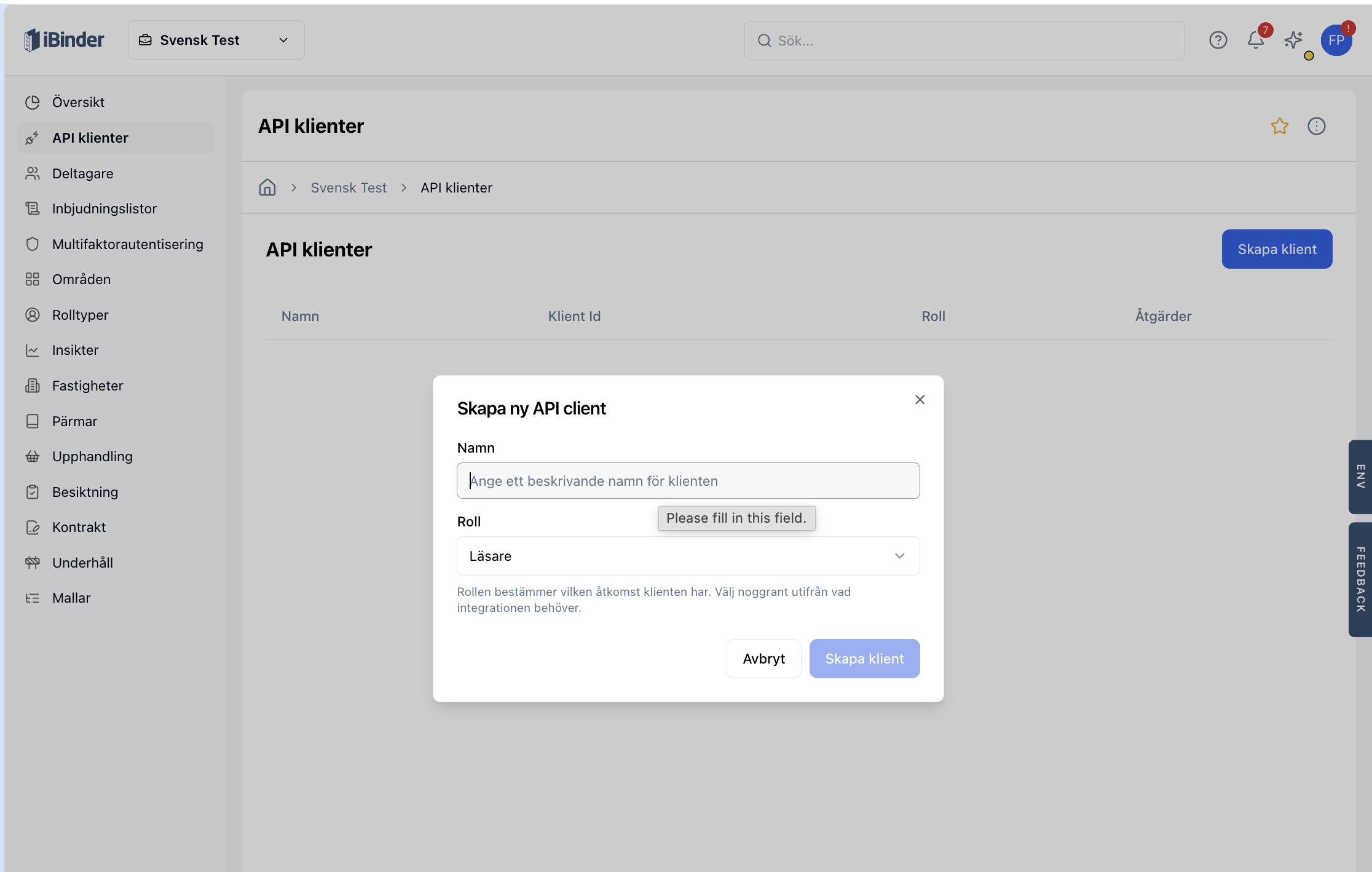
Fill in:
- Name — a descriptive name for the client (e.g. the name of the integration or system that will use it).
- Role — the role the client should have in this organization: Reader, Creator or Administrator for access to the entire organization, or Restricted reader for access to selected areas only.
- Areas (Restricted reader only) — click Add area to pick an area, then choose the client's role in it (Reader, Creator or Administrator). Add as many areas as the integration needs.
Click Create client to create the client.
3. Copy the client secret
After creation, iBinder shows the new client secret in a New secret created dialog.
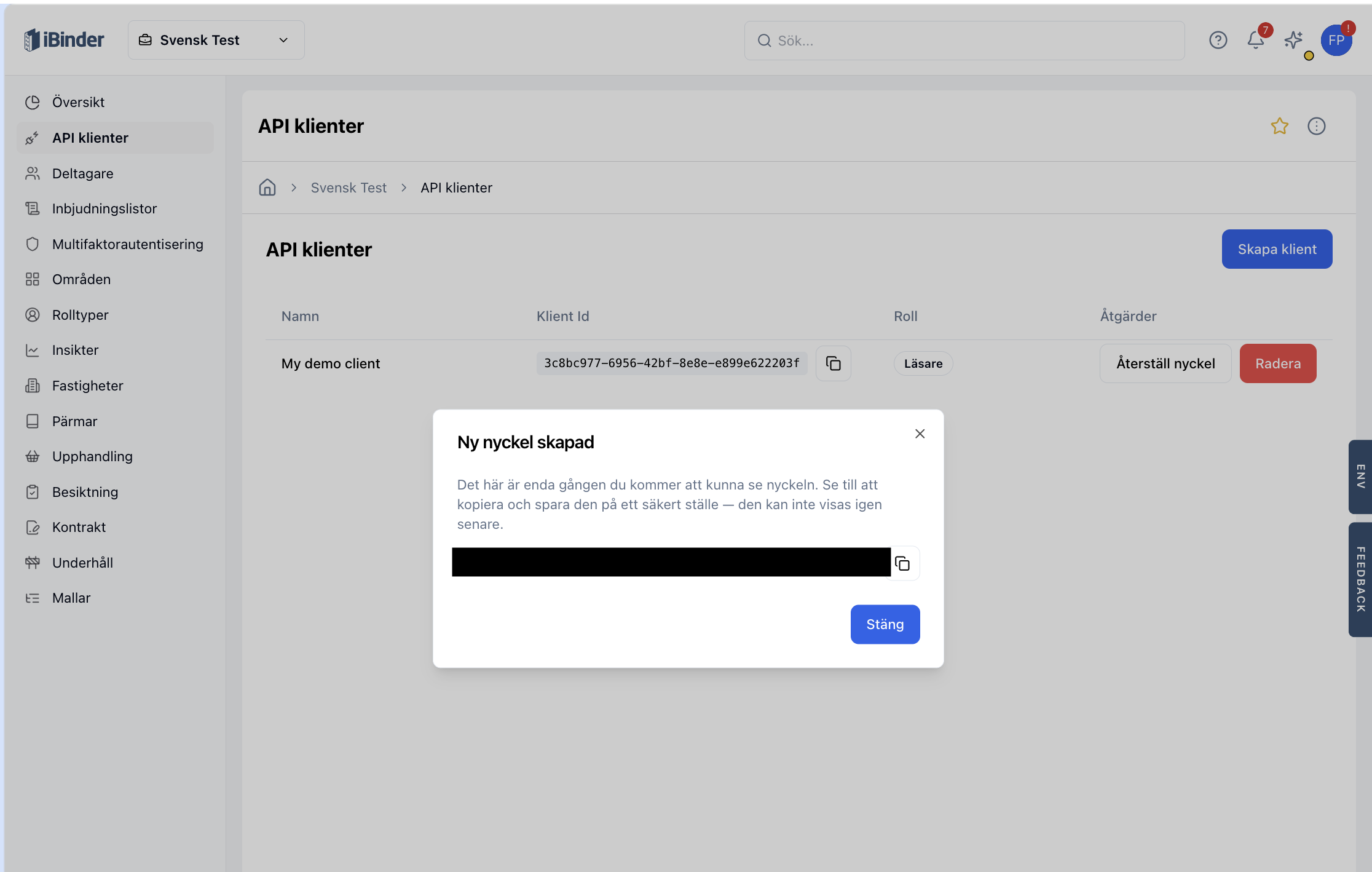
This is the only time the secret is shown
The client secret cannot be retrieved later. Copy it now and store it in a secure secret store (e.g. a password manager or your platform's secret manager).
If you lose the secret, you can reset the secret to generate a new one — the old secret will stop working immediately.
Click Close to close the dialog.
4. Retrieve the client id
The client now appears in the API clients list. From this view you can copy the Client Id at any time using the copy button next to it. The Areas column shows what the client can reach: Entire organization for organization-wide clients, or each area and the client's role in it for Restricted reader clients.
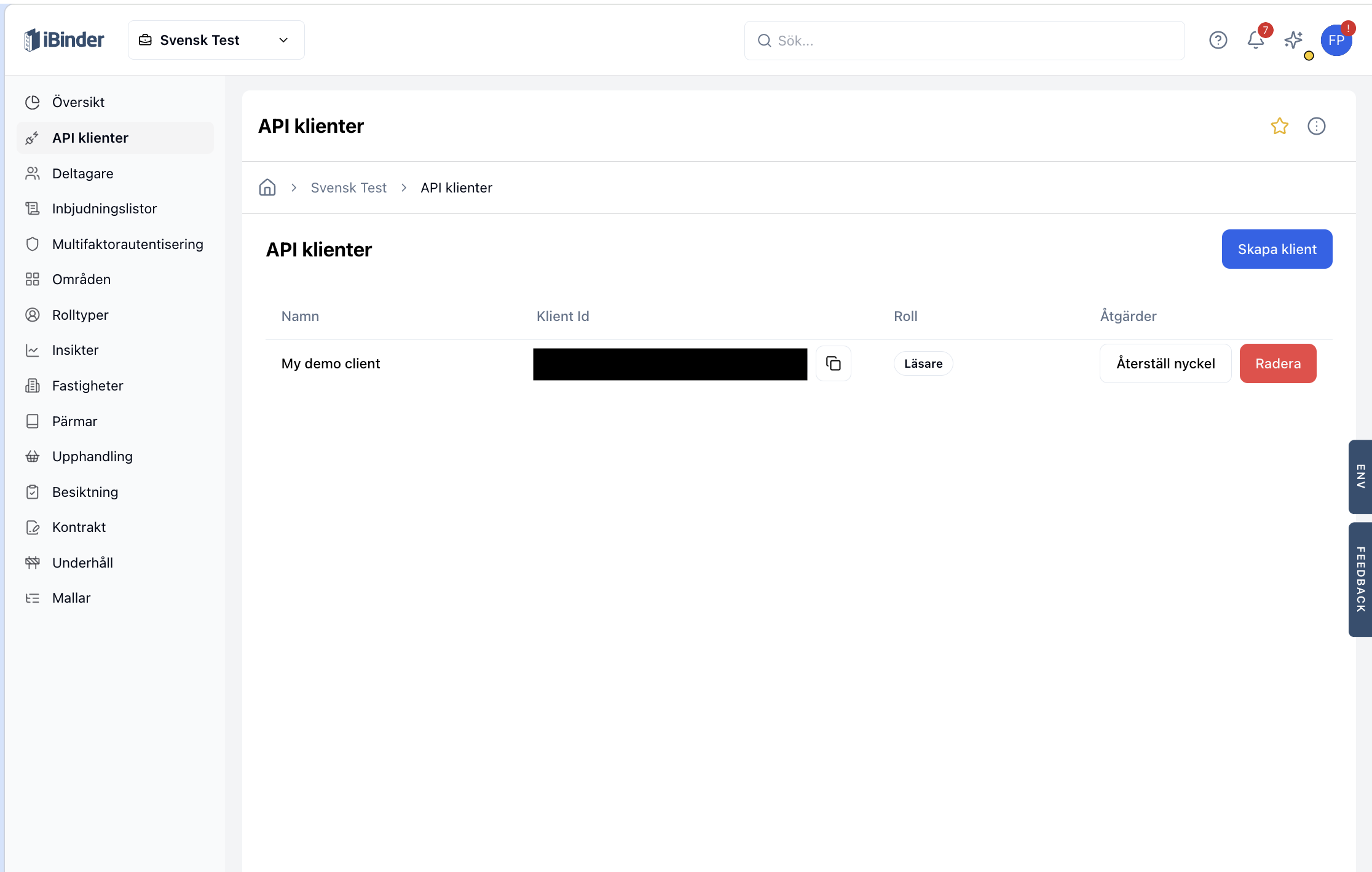
You now have all three values you need to call the API: the organization id from earlier, the client id from the list, and the client secret you just copied. See Authentication for the token request and how to call the API, or jump straight to the Quickstart for an end-to-end example.
Manage API clients
From the API clients list, each row exposes these management actions:
- Manage areas (Restricted reader clients only) — add or remove areas, or change the client's role in an area. Changes take effect without creating a new client or secret.
- Reset secret — generates a new client secret. The previous secret stops working immediately. The new secret is shown once, in the same dialog as during creation — copy it before closing.
- Delete — permanently removes the client, and removes it from any areas it belongs to. Any integration using its credentials will stop being able to authenticate.
The client's organization role is fixed at creation. To change it (for example from Restricted reader to Reader), delete the client and create a new one. A Restricted reader client's per-area roles can be changed at any time with Manage areas.
Limit access with areas
Areas are configured on the organization's Areas page and group binders and properties together. To give a client access to only part of the organization:
- Create the client with the Restricted reader role and add the areas it needs, or add them later with Manage areas.
- Give the client the lowest role it needs in each area.
API clients also appear as members on the Areas page, but there they are read-only: their area access is managed from the API clients page.
Reset a client secret
If you lose a client secret, or suspect it has been exposed:
- Open the API clients page.
- Find the client in the list and click Reset secret.
- Copy and store the new secret from the confirmation dialog — this is the only time it will be shown.
- Update any integrations using the client with the new secret.
The client id stays the same after a reset; only the secret changes.